
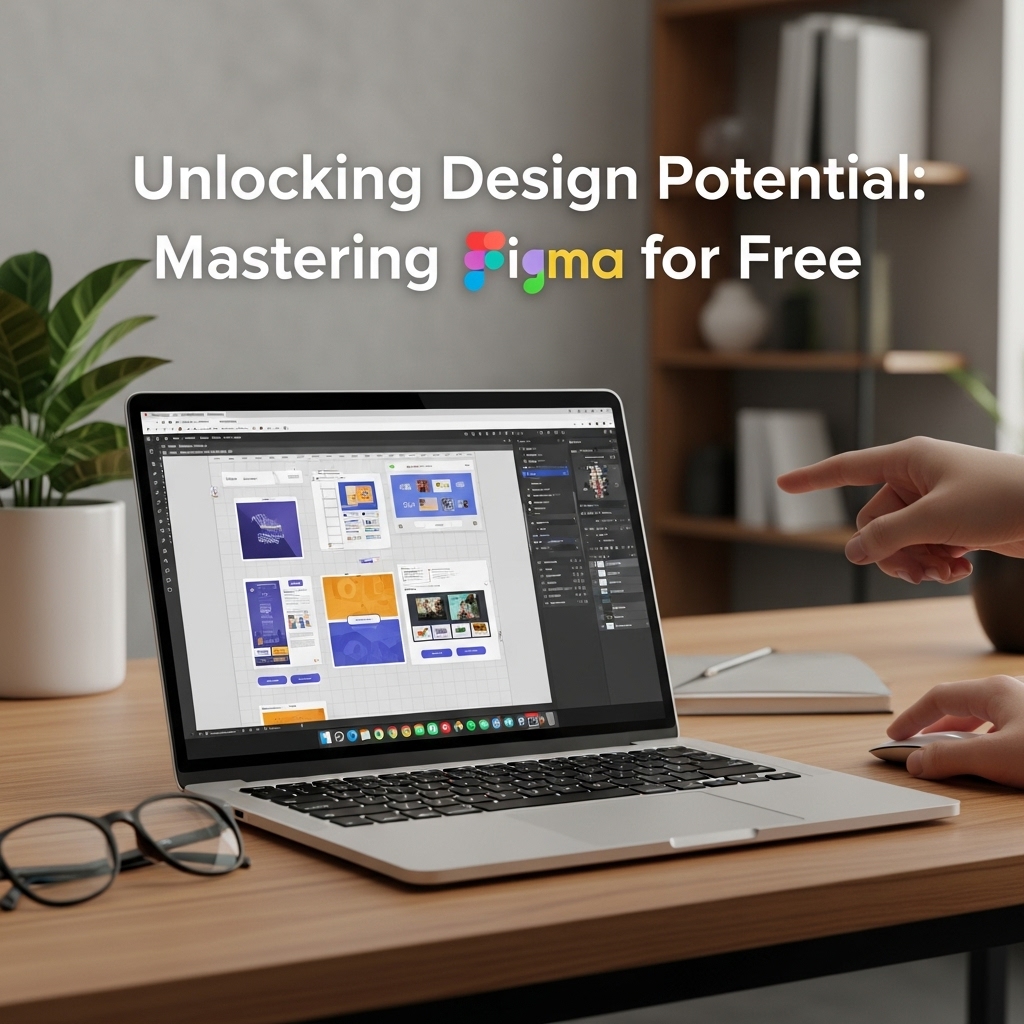
Introduction to Figma
Figma is a powerful and popular design tool that has taken the world of user interface (UI) and user experience (UX) design by storm. With its cloud-based platform, real-time collaboration features, and extensive design capabilities, Figma has become the go-to choice for designers, developers, and teams alike. The best part? You can master Figma for free, without spending a dime. In this article, we'll explore the world of Figma, its features, and provide a comprehensive guide on how to unlock its design potential without breaking the bank.
Getting Started with Figma
To get started with Figma, simply head over to their website and sign up for a free account. You'll be asked to provide some basic information, such as your name, email address, and password. Once you've completed the sign-up process, you'll be taken to the Figma dashboard, where you can create a new project or explore the various templates and resources available. Figma offers a range of templates for different design needs, including mobile apps, web applications, and more. For example, if you're designing a mobile app, you can use Figma's pre-built template to get started, which includes a range of pre-designed screens and components.
Understanding Figma's Interface
Figma's interface is intuitive and easy to navigate, even for those who are new to design. The main workspace is divided into several sections, including the toolbar, canvas, and layers panel. The toolbar provides access to various design tools, such as shapes, text, and frames, while the canvas is where you'll create and arrange your design elements. The layers panel allows you to organize and manage your design elements, making it easy to select, edit, and manipulate individual components. For instance, you can use the layers panel to create a complex design with multiple layers, and then use the toolbar to add effects, such as drop shadows and gradients, to individual elements.
Designing with Figma
Now that you're familiar with Figma's interface, it's time to start designing. Figma offers a wide range of design tools and features, including vector editing, prototyping, and collaboration. With Figma, you can create custom designs from scratch or use pre-built templates and components to speed up your design process. For example, you can use Figma's vector editing tools to create custom icons and graphics, or use their pre-built UI kits to design a consistent and professional-looking interface. Figma also allows you to create interactive prototypes, which can be shared with stakeholders and team members for feedback and testing. To create a prototype, simply add interactions to your design elements, such as buttons and links, and then share the prototype with others to test and refine your design.
Collaboration and Feedback
One of Figma's most powerful features is its real-time collaboration capabilities. With Figma, you can invite team members and stakeholders to edit and provide feedback on your designs in real-time. This eliminates the need for lengthy email threads, version control issues, and misunderstandings. Instead, you can work together in a single, cloud-based workspace, where everyone can see and contribute to the design process. For example, you can use Figma's commenting feature to leave feedback and suggestions on a design, or use their @mention feature to assign tasks and notify team members of changes. Figma also integrates with a range of third-party tools and services, such as Slack and Trello, making it easy to incorporate design into your existing workflow.
Mastering Figma's Advanced Features
While Figma's basic features are easy to learn, its advanced features require a bit more practice and patience. One of Figma's most powerful advanced features is its use of plugins. Figma plugins are third-party tools that can be installed directly within the Figma interface, providing additional functionality and capabilities. For example, you can use plugins like Autoflow to automate repetitive design tasks, or use plugins like Unsplash to access a vast library of high-quality images and assets. Figma also offers a range of advanced design features, such as responsive design, which allows you to create designs that adapt to different screen sizes and devices. To create a responsive design, simply use Figma's frame tool to create a flexible grid, and then use their constraint feature to define how design elements should behave on different screens.
Conclusion
In conclusion, Figma is a powerful and versatile design tool that can be mastered for free. With its intuitive interface, extensive design capabilities, and real-time collaboration features, Figma is the perfect choice for designers, developers, and teams alike. By following the tips and techniques outlined in this article, you can unlock Figma's design potential and take your design skills to the next level. Whether you're a seasoned designer or just starting out, Figma's free plan provides access to a range of features and tools, including design files, prototypes, and collaboration. So why not give Figma a try today and see what you can create? With Figma, the possibilities are endless, and the best part is, you can get started for free.